

Getting Started
Connect your AI agents to Edison Watch in minutes.
1. Sign Up at dashboard.edison.watch
Go to dashboard.edison.watch and create an account. Edison Watch is a self-serve product - sign up with your work email and your organization is created automatically.
After signing up, your account enters a short approval queue. You'll receive an email once your organization is activated.
2. Sign In and Connect Your AI Agent
Once approved, sign in to your dashboard. You land on the onboarding screen, where you pick your AI client and copy a single connect artifact:
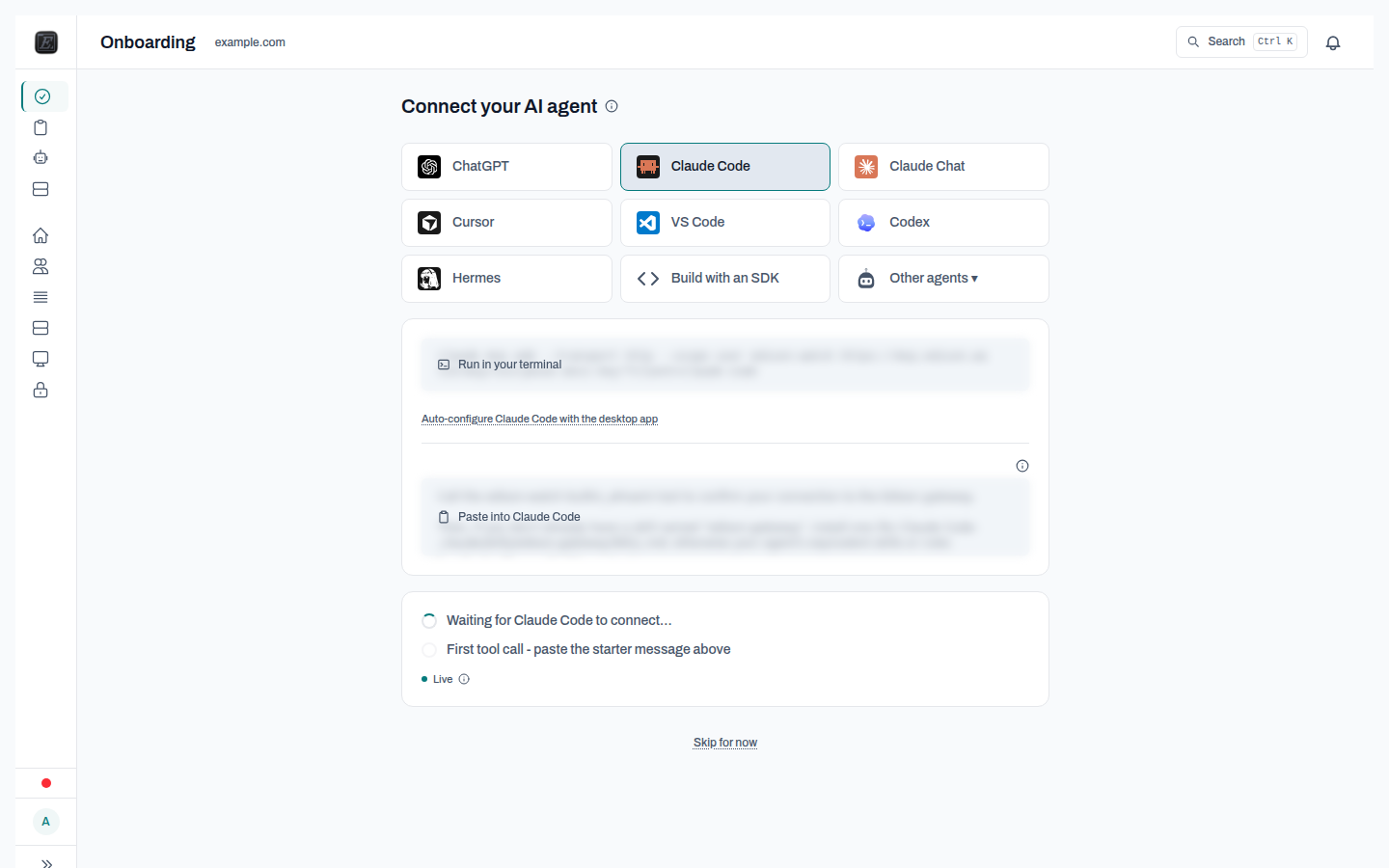
- Pick your AI client - Claude Code, Cursor, ChatGPT, VS Code, Codex, or any other MCP-capable agent.
- Copy the connect artifact - one command or config snippet that points your agent at Edison Watch.
- Make your first call - paste in the starter message. The screen flips to a success state the moment Edison sees your first proxied tool call.
Admins can go further: open the pre-installed Demo Trifecta Server from My MCPs to see Lethal Trifecta enforcement in action, and turn on auto-quarantine so newly detected MCP servers are held for review before use. See MCP Quarantine.
Find more MCP servers on smithery.ai or glama.ai.
3. Work Protected
Edison Watch runs in the background from here:
- Monitoring - every tool call is logged with full context.
- Blocking - ACL violations are prevented automatically.
- Approvals - risky or policy-matched actions pause for review.